
Desktop2Stereo:一款将2D桌面转换为3D立体的应用程序
一款通用的实时2D转3D应用程序,支持Windows/Mac/Ubuntu系统上的AMD/NVIDIA/Intel/Qualcomm GPU/Apple Silicon设备,由深度估计AI模型驱动。
备用下载链接
视频教程
- 推荐视频:
- 完整教程列表:
支持的硬件
- AMD GPU (新增ROCm7支持)
- NVIDIA GPU
- Apple Silicon 芯片 (M1, M2, M3, M4, …)
- 其他 DirectML 设备 (AMD GPU, Intel Arc/Iris GPU, Qualcomm® Adreno GPU 等。仅限 Windows)
支持的操作系统
- Windows 10/11 (x64/Arm64)
- MacOS 10.16 或更高版本
- Ubuntu 22.04 或更高版本
准备与安装
Windows
-
安装最新的 GPU 驱动程序
AMD GPU:
-Windows:推荐下载25.9.2版本以获得稳定的ROCm7性能: AMD Software: Adrenalin Edition 25.9.2 Windows下载。
-Ubuntu:从 AMD 驱动程序和支持 下载最新 GPU 驱动程序。
NVIDIA GPU: 从 NVIDIA 官方 GeForce 驱动程序 下载最新 GPU 驱动程序。
Intel GPU: 从 Intel 驱动和软件下载中心 下载最新 GPU 驱动程序。
Qualcomm GPU: 从 Qualcomm® Adreno™ Windows Graphics Drivers for Snapdragon® X Platform 下载最新 GPU 驱动程序。
其他 DirectML 设备: 请安装相应的最新硬件驱动程序。 -
安装Microsoft Visual C++ Redistributable
下载 [Visual Studio 2017–2026 C++ Redistributable] (https://learn.microsoft.com/en-us/cpp/windows/latest-supported-vc-redist?view=msvc-170#latest-supported-redistributable-version) 并安装 (需要重启Windows)。 -
开启长路径
双击运行Desktop2Stereo文件夹中的long_path.reg,并确认弹出的警告。 -
部署 Desktop2Stereo 环境
-
方法 1 (推荐): 使用便携版
下载: 夸克网盘 (提取码:1vcn)
AMD 6000/7000/9000/Ryzen AI (Max)等支持ROCm7的GPU: 由于部署过程特殊便携版不提供,请使用 方法 2。
旧AMD/Intel/Qualcomm GPU 及其他 DirectML 设备: 下载并解压Desktop2Stereo_vX.X.X_AMD_etc_Windows.zip到本地磁盘。
NVIDIA GPU: 下载并解压Desktop2Stereo_vX.X.X_NVIDIA_Windows.zip到本地磁盘。 -
方法 2: 使用内嵌 Python 手动部署(支持AMD ROCm7更多设备)
- 下载并解压
Desktop2Stereo_vX.X.X_Python311_Windows.zip到本地磁盘。 - 安装 Python 环境
AMD 6000/7000/9000/Ryzen AI (Max)等支持ROCm7的GPU: 双击install-rocm7_standalone.bat。
旧AMD/Intel/Qualcomm GPU 及其他 DirectML 设备: 双击install-dml_standalone.bat。
NVIDIA GPU: 双击install-cuda_standalone.bat。
- 下载并解压
-
方法 3: 使用系统 Python 手动部署
-
安装 Python 3.11
从 Python.org 下载并安装。 -
下载 Desktop2Stereo 应用
下载 Desktop2Stereo.zip 并解压到本地磁盘。 -
安装 Python 环境
AMD 6000/7000/9000/Ryzen AI (Max)等支持ROCm7的GPU: 双击install-rocm7.bat。
旧AMD/Intel/Qualcomm GPU 及其他 DirectML 设备: 双击install-dml.bat。
NVIDIA GPU: 双击install-cuda.bat。
-
-
MacOS
-
安装 Python 3.11
从 Python.org 下载并安装。 -
下载 Desktop2Stereo 应用
下载 Desktop2Stereo.zip 并解压到本地磁盘。 -
安装 Python 环境
双击install-mps可执行文件。(请在 隐私与安全性设置 中允许打开) 若无法执行,请在终端进入文件夹路径使用以下命令:chmod a+x install-mps chmod a+x run_mac chmod a+x update_mac_linux
Ubuntu
-
安装最新的 GPU 驱动程序
AMD GPU: 从 AMD 驱动程序和支持 下载最新 GPU 驱动程序和 ROCm。
NVIDIA GPU: 从 NVIDIA GeForce 驱动程序 下载最新 GPU 驱动程序。 -
安装 Python 3.11-dev
sudo add-apt-repository ppa:savoury1/python sudo apt update sudo apt-get install python3.11-dev python3.11-venv -
下载 Desktop2Stereo 应用
下载 Desktop2Stereo_vX.X.X.zip 并解压到本地磁盘。 -
安装 Python 环境
AMD 7000/9000/Ryzen AI (Max)等支持ROCm7的GPU: 请在此处检查兼容性: https://rocm.docs.amd.com/en/latest/compatibility/compatibility-matrix.htmlbash install-rocm7.bash旧AMD GPU: 运行
install-rocm.bash:bash install-rocm.bashNVIDIA GPU: 运行
install-cuda.bash:bash install-cuda.bash
Desktop2Stereo也提供了一键更新脚本:
- Winodws双击运行update.bat
- MacOS/Linux通过终端运行update_mac_linux:
bash bash update_mac_linux
运行 Desktop2Stereo
快速运行
- 在 Desktop2Stereo 中选择一个 运行模式:
本地查看,MJPEG推流,RTMP推流,旧网络推流,3D 显示器 - 选择 计算设备
- 选择目标 显示器/窗口
- 直接使用默认设置并点击 运行。
- 同时提供了
run_main脚本可直接一键无GUI启动
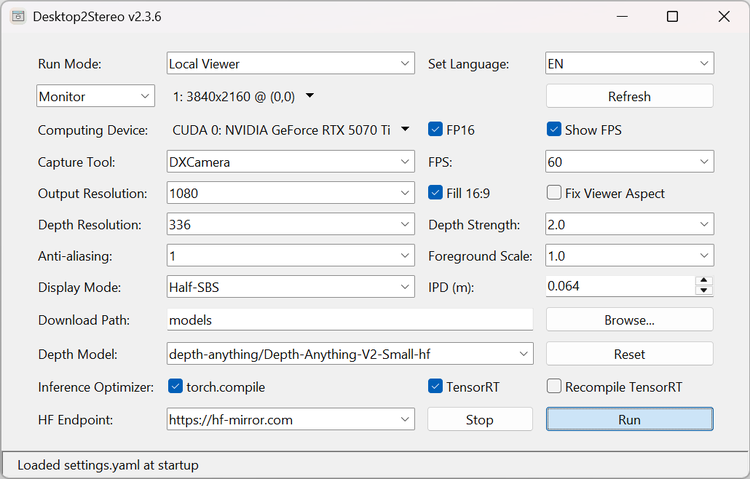
本地查看 模式
本地查看 模式最适合通过 SteamVR/Virtual Desktop/AR 眼镜作为有线显示器进行低延迟使用。
-
选择运行模式为 本地查看。
-
通过 显示器 或 窗口 模式选择捕获目标,您可以使用
刷新按钮更新最新的 显示器 或 窗口 列表。 -
点击 Stereo Viewer 窗口,使用
← 左或→ 右方向键将 Stereo Viewer 窗口切换到第二个(虚拟)显示器显示。 -
按下
空格键或回车键或 XBOX 游戏手柄的A键 切换全屏模式 (在MacOS上你可能需要快速按两次按键)。 -
现在您可以使用 AR/VR 来观看 SBS 或 TAB 输出。
- AR 需要切换到 3D 模式以连接为 3840*1080 (全并排,
Full-SBS) 显示器。
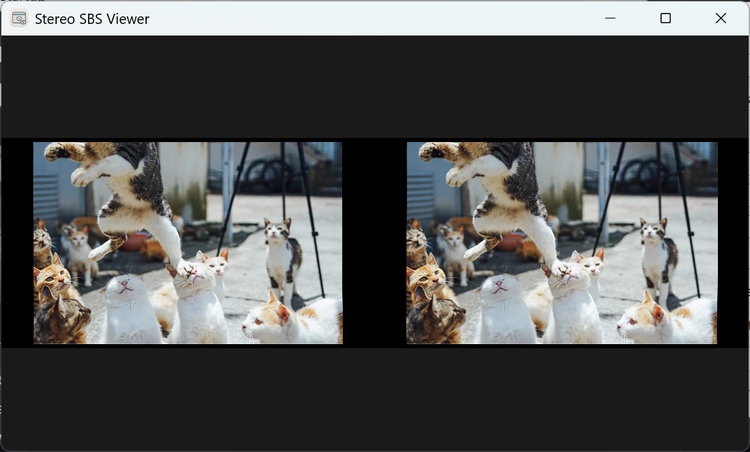
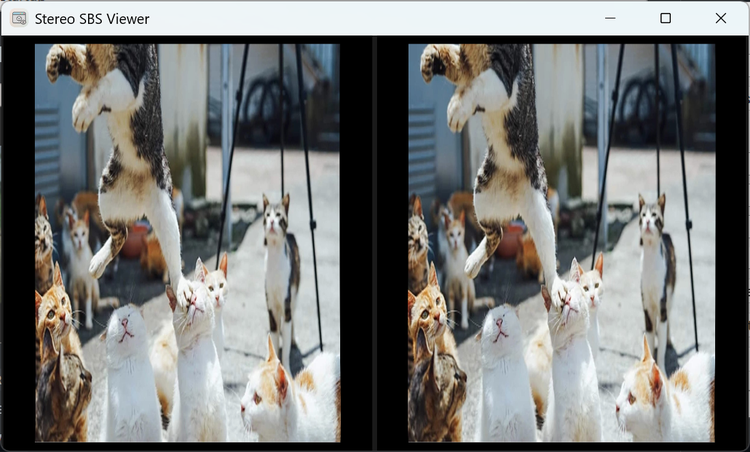
- VR 需要使用第二显示器/虚拟显示器 (VDD),配合 Desktop+[Steam VR] 或 Virtual Desktop[PC/独立 VR] 或 OBS + Wolvic Browser [独立 VR] 将
Half-SBS(半并排) /Full-SBS(全并排) /TAB(上下) 显示合成 3D 效果。 - 您可以使用
Tab键切换Half-SBS/Full-SBS/TAB模式。
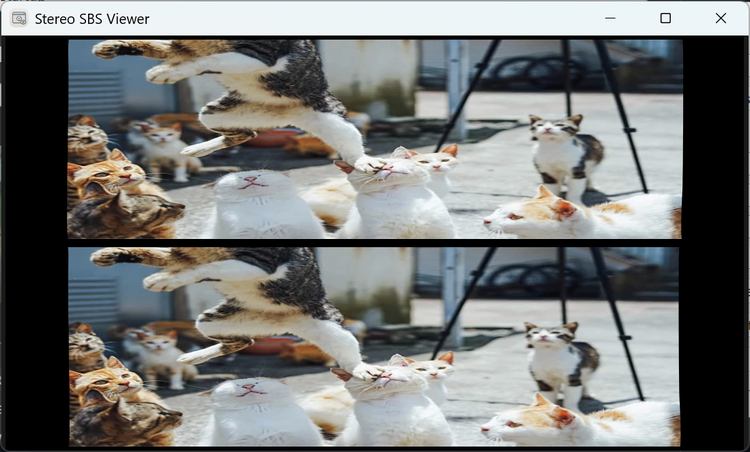
- AR 需要切换到 3D 模式以连接为 3840*1080 (全并排,
-
实时修改 深度强度。
使用↑ 上或↓ 下方向键以0.5为步长增加/减少深度强度。按0键重置。
深度强度 的定义在 详细设置 部分。 -
按
Esc键退出 Stereo Viewer。
如果
显示 FPS为 开启 状态,深度值将显示在 FPS 指示器下方。
RTMP推流 模式
RTMP推流 模式通过捕获本地的Stereo Viewer窗口,最适合将视频和音频一起无线流式传输到客户端设备/应用程序,如 VLC 播放器, Wolvic 浏览器等,但可能会有
1~3秒的延迟。
-
选择运行模式为 RTMP推流。
-
选择一个 流协议: 推荐使用
HLS。 -
选择一个音频设备
-
Windows
请在系统音频-录制设备的设置中启用立体声混音设备,一般为Stereo Mix (Realtek(R)),并选择Realtek(R) HD Audio作为系统声音输出设备。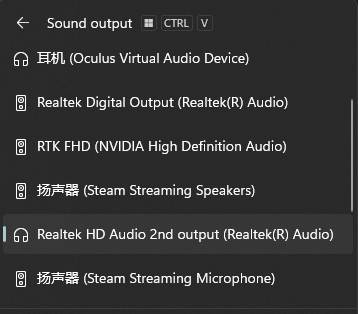
如果您的 Windows 设备没有
Stereo Mix (Realtek(R)),请安装 Screen Capture Recorder 并选择 立体声混音 为virtual-audio-capturer。 -
MacOS
安装以下包含音频捕获驱动程序的软件之一:
a. BlackHole: https://existential.audio/blackhole/
b. Virtual Desktop Streamer: https://www.vrdesktop.net/
c. Loopback: https://rogueamoeba.com/loopback/ (商业版)
d. 或其他虚拟音频设备
选择 立体声混音 为BlackHole 2ch或Virtual Desktop Speakers或Loopback Audio或其他相应的虚拟音频设备,并选择同名的系统 输出 设备。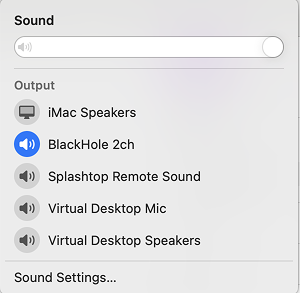
-
Ubuntu
选择 立体声混音 设备名称以stereo.monitor结尾,例如alsa_output.pci-xxxx_xx_1x.x.analog-stereo.monitor,并在系统声音设置中选择输出设备为Digtial Output(S/PDIF)-xxxx。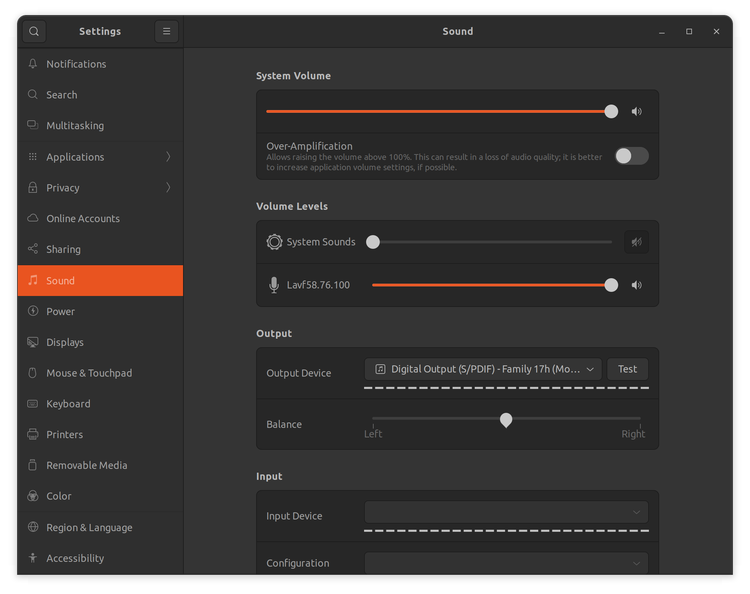
-
-
设置一个 流密钥,默认为
live。 -
(可选) 调整 音频延迟,
负值表示在视频之前提前播放音频,正值表示在视频之后延迟播放音频。 -
(可选) 建议使用分辨率和主屏幕相同或更大的第二个 (虚拟) 屏幕来放置Stereo Viewer窗口。
-
其他设置与 本地查看 相同,点击
运行按钮运行。 -
在客户端设备上,根据 流协议 输入推流网址。
AR: 用 VLC 播放器 打开
HLS M3U8链接并使用Full-SBS显示模式。
VR / 华为AR: 用 Wolvic 浏览器 打开HLS链接并使用Half_SBS/TAB显示模式。
如果是MacOS上推流,您也可以使用WebRTC链接。
客户端设备上的其他RTSP,RTMP,HLS M3U8协议可能适用于 VLC 播放器 [例如 AR 眼镜的扩展屏幕模式] / VR视频应用程序 (如DeoVR) 。
若使用全宽左右模式 (Full-SBS) 输出相同主屏幕的分辨率,您将需要宽度为原始屏幕两倍的屏幕,如主屏幕4k (3840x2160)则第二个 (虚拟) 屏幕需要为8k (7680x2160)
MJPEG推流 模式
MJPEG推流 模式是以较低延迟仅传输视频到客户端设备/应用程序的无线网络推流模式,如 Wolvic 浏览器等。
对于 VR 或华为 AR:推荐使用 Wolvic 浏览器 (基于 Chromium) 打开 HTTP MJPEG 链接。
- 选择运行模式为 MJPEG推流
- 指定 流端口,默认为
1122。 - 其他设置与 本地查看 相同,点击
运行按钮。 - 在客户端设备上,输入 流服务器 URL 以访问视频。
- 对于音频,请使用连接到您的 PC 或 Mac 的 蓝牙 或 耳机。
旧网络推流 模式
旧网络推流 模式是一种传统的 MJPEG 网络推流模式,使用 PyTorch 方法生成左右眼画面。
主要用法与 MJPEG推流 模式相同。
3D 显示器 模式 (仅限 Windows)
3D 显示器 模式是一种特殊的 本地查看 模式,专用于 3D 显示器,此模式不需要虚拟显示驱动程序。它只能以 全屏 方式运行并 本地 使用,因为 Stereo Viewer 窗口的屏幕捕获属性被全局
禁用。
在 3D 显示器模式下,请使用左右视图上的光标来控制您的 PC。
完整键盘快捷键
需要先点击 Stereo Viewer 窗口/标签页才能使用。
| 按键 | 动作描述 | 支持的运行模式 |
|---|---|---|
回车键 / 空格键 |
切换全屏 | 本地查看 |
← 左 |
将窗口移动到相邻显示器(上一个) | 本地查看 / RTMP推流 / 3D 显示器 |
→ 右 |
将窗口移动到相邻显示器(下一个) | 本地查看 / RTMP推流 / 3D 显示器 |
Esc |
关闭应用程序窗口 | 本地查看 / RTMP推流 / MJPEG推流 / 3D 显示器 |
↑ 上 |
深度强度增加 0.5 (最大 10) | 本地查看 / RTMP推流 / MJPEG推流 / 3D 显示器 |
↓ 下 |
深度强度减少 0.5 (最小 0) | 本地查看 / RTMP推流 / MJPEG推流 / 3D 显示器 |
0 |
重置深度强度为原始值 | 本地查看 / RTMP推流 / MJPEG推流 / 3D 显示器 |
Tab |
循环切换到下一个显示模式 | 本地查看 / RTMP推流 / MJPEG推流 / 3D 显示器 |
F |
切换 FPS 显示 | 本地查看 / RTMP推流 / MJPEG推流 / 3D 显示器 |
A |
切换"填充 16:9"模式 | 本地查看 / RTMP推流 / MJPEG推流 / 3D 显示器 |
L |
切换锁定Stereo Viewer窗口宽高比锁定 | 本地查看 |
详细设置指南
所有可选设置都可以在 GUI 窗口上修改并保存到 settings.yaml。每次点击 运行 时,设置将自动保存,点击 重置 将恢复默认设置。
-
运行模式
提供5种运行模式:本地查看,MJPEG推流,RTMP推流,旧网络推流,3D 显示器(仅限 Windows)。 -
设置语言
支持英文 (EN) 和简体中文 (CN)。 -
显示器 或 窗口 模式
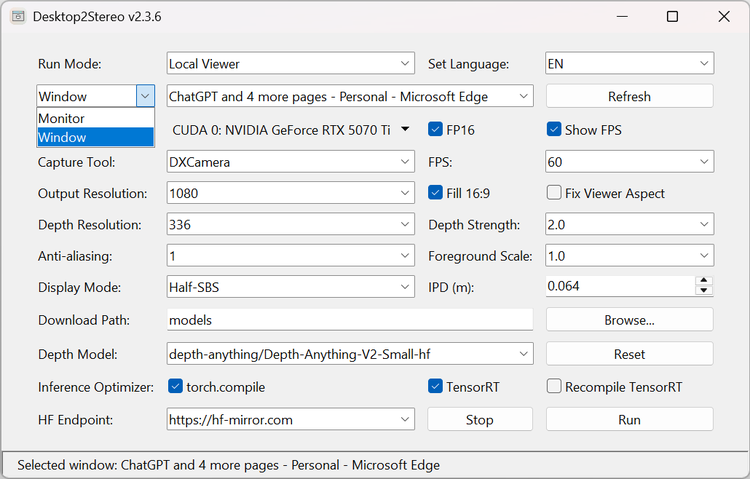
默认是您的主显示器(通常应遵循系统设置中的显示器编号)。
您也可以切换到窗口捕获模式,可选菜单将包含所有活动窗口的名称。 -
计算设备
默认应是您的 GPU (CUDA/DirectML/MPS),或者如果您没有兼容的计算设备,则为CPU。 -
FP16
推荐用于大多数计算设备以获得更好的性能。如果您的设备不支持FP16数据类型,请禁用它。 -
显示 FPS
在 Stereo Viewer 的标题栏和输出左右眼画面的画面上显示 FPS 指示器。 -
捕获工具 (仅限 Windows)
- DXCamera: 基于 wincam 使用
DXGI Desktop Duplication API,具有最高的 FPS 但 CPU 温度较高。 - WindowsCapture: 基于 Windows-Capture Python 使用
Graphics Capture API,FPS 稍低但 CPU 使用率和温度较低。它需要…
- DXCamera: 基于 wincam 使用
-
FPS (每秒帧数)
FPS 可以设置为您的显示器刷新率,默认输入 FPS 是60。
它决定了屏幕捕获过程的频率和流服务器模式的流帧率(更高的 FPS 不保证更流畅的输出,取决于您的设备)。 -
输出分辨率
默认为1080(即 1080p,1920x1080) 以获得更流畅的体验。如果您的设备性能强大,也可以选择2160(4K, 即3840x2160) 和1440(2K, 即2560x1440) 分辨率。
如果输入源的分辨率小于输出分辨率,则 输出分辨率 将应用与较小者相同的分辨率。
输出分辨率 默认保持输入源的宽高比。 -
填充 16:9
默认启用。如果输入源的宽高比不是16:9,将应用黑色背景将其填充为16:9。 -
固定查看器宽高比 (仅限本地查看 模式)
默认禁用。此选项用于锁定 Stereo Viewer 的窗口,这对于像 Lossless Scaling 这样的放大和帧生成应用程序可能有用。 -
深度分辨率
更高的 深度分辨率 可以提供更好的深度细节,但会导致更高的 GPU 使用率,这也与模型训练设置有关。
默认 深度分辨率 设置为336,以在Depth-Anything-V2模型上获得平衡的性能。深度分辨率 选项因不同的深度模型而异。 -
深度强度
深度强度越高,物体的 3D 深度效果越强。然而,过高的值可能会导致可见的伪影和失真。
默认设置为2.0。推荐的深度强度范围是(1, 5)。 -
抗锯齿
这可以有效减少在高 深度强度 下的锯齿边缘和伪影,默认值设置为1适用于大多数情况。更高的值可能会减少深度细节。 -
前景缩放
默认值为1.0。正值表示前景更近,背景更远。负值表示前景更平,背景更近。0表示前景和背景强度不变。 -
显示模式
它决定了左右眼画面在输出中的排列方式。默认为大多数 VR 设备使用Half-SBS,TAB也是一种选择;Full-SBS主要用于 AR 眼镜。-
Full-SBS (全宽左右,
32:9)
两个全分辨率图像并排放置:一个用于左眼,一个用于右眼。
需要能够处理双倍宽度输入的显示器。
提供更高的图像质量,但需要更多带宽和处理能力。 -
Half-SBS (半宽左右,
16:9)
两个图像并排放置,但每个图像在水平方向上被压缩以适合单个帧。
更兼容标准显示器和媒体播放器。
由于每只眼睛的分辨率降低,图像质量略低。 -
TAB (上下,
16:9)
左右眼图像垂直堆叠:一个在上,一个在下。
每个图像在垂直方向上被压缩以适合帧。
流媒体和直播格式中常见;质量与 Half-SBS 相似。
-
-
瞳距 (米)
瞳距 (IPD) 是您瞳孔中心之间的距离,它影响您的大脑如何解读立体 3D。
默认瞳距为0.064(米),这是人类的平均瞳距值。 -
串流协议(仅限 RTMP Streamer)
默认使用HLS以获得最佳兼容性,HLS M3U8可在移动端 VLC Player 中使用。支持的协议包括RTMP、RTSP、HLS、HLS M3U8和WebRTC。你可以切换协议以显示目标 URL,当 RTMP Streamer 正常工作时,所有 URL 都可直接使用。 -
串流地址(仅限 RTMP Streamer、MJPEG Streamer、Legacy Streamer)
只读,由所选串流协议和本地 IP 动态生成。 -
串流密钥(仅限 RTMP Streamer)
为 RTMP Streamer 设置的私密密钥字符串,将自动应用于 串流地址 中。 -
恒定质量(仅限 RTMP Streamer)
默认值为20,可设置范围为18~23。恒定质量(Constant Rate Factor) 用于控制视频码率。数值越小,视频质量越高。 -
立体声混音(仅限 RTMP Streamer)
这是用于捕捉系统播放音频的 立体声混音(Stereo Mix) 设备。
在 Windows 上,通常使用Stereo Mix (Realtek(R)),并在 Windows 音频设置中将输出设备设置为Realtek(R) HD Audio。也可以使用来自 Screen Capture Recorder 的虚拟音频设备。
在 macOS 上,可以选择 BlackHole、Virtual Desktop Speakers、[Loopback] 或其他虚拟音频设备。请确保在 macOS 音频设置中使用相同的输出设备。 -
音频延迟(仅限 RTMP Streamer)
默认值为-0.15秒,用于对齐处理后音频与视频的时间戳。负值表示音频会比视频提前播放,正值表示音频会比视频延后播放。 -
下载路径
默认下载路径是工作目录下的models文件夹。 -
深度模型
从 HuggingFace 修改深度模型 ID,depth_model下的模型 ID 大多应以-hf结尾。
大模型会导致更高的 GPU 使用率和延迟。
默认深度模型:depth-anything/Depth-Anything-V2-Small-hf。
您也可以在settings.yaml中手动添加 Hugging Face 模型,这些模型包含model.safetensors,config.json,preprocessor_config.json文件,可在 HuggingFace 找到。
当前支持的模型:- depth-anything/Depth-Anything-V2-Small-hf
- depth-anything/Depth-Anything-V2-Base-hf
- depth-anything/Depth-Anything-V2-Large-hf
- depth-anything/Video-Depth-Anything-Small
- depth-anything/Video-Depth-Anything-Base
- depth-anything/Video-Depth-Anything-Large
- depth-anything/DA3-SMALL
- depth-anything/DA3-BASE
- depth-anything/DA3-LARGE
- depth-anything/DA3-GIANT
- depth-anything/DA3METRIC-LARGE
- depth-anything/DA3NESTED-GIANT-LARGE
- depth-anything/Depth-Anything-V2-Metric-Outdoor-Small-hf
- depth-anything/Depth-Anything-V2-Metric-Outdoor-Base-hf
- depth-anything/Depth-Anything-V2-Metric-Outdoor-Large-hf
- depth-anything/Depth-Anything-V2-Metric-Indoor-Small-hf
- depth-anything/Depth-Anything-V2-Metric-Indoor-Base-hf
- depth-anything/Depth-Anything-V2-Metric-Indoor-Large-hf
- depth-anything/Metric-Video-Depth-Anything-Small
- depth-anything/Metric-Video-Depth-Anything-Base
- depth-anything/Metric-Video-Depth-Anything-Large
- depth-anything/prompt-depth-anything-vits-hf
- depth-anything/prompt-depth-anything-vits-transparent-hf
- depth-anything/prompt-depth-anything-vitl-hf
- LiheYoung/depth-anything-small-hf
- LiheYoung/depth-anything-base-hf
- LiheYoung/depth-anything-large-hf
- xingyang1/Distill-Any-Depth-Small-hf
- lc700x/Distill-Any-Depth-Base-hf
- xingyang1/Distill-Any-Depth-Large-hf
- facebook/dpt-dinov2-small-kitti
- lc700x/dpt-dinov2-base-kitti-hf
- lc700x/dpt-dinov2-large-kitti-hf
- lc700x/dpt-dinov2-giant-kitti-hf
- lc700x/dpt-dinov2-small-nyu-hf
- lc700x/dpt-dinov2-base-nyu-hf
- lc700x/dpt-dinov2-large-nyu-hf
- facebook/dpt-dinov2-giant-nyu
- lc700x/depth-ai-hf
- lc700x/dpt-hybrid-midas-hf
- Intel/dpt-beit-base-384
- Intel/dpt-beit-large-512
- Intel/dpt-large
- lc700x/dpt-large-redesign-hf
- Intel/zoedepth-nyu-kitti
- Intel/zoedepth-nyu
- Intel/zoedepth-kitti
- apple/DepthPro-hf # 慢,不推荐
-
下载节点 (Hugging Face)
HF-Mirror 是原始 Hugging Face 网站的镜像站点,托管 AI 模型。深度模型将在首次运行时自动从 Hugging Face 下载到 下载路径。 -
推理优化 (仅限 Windows/Ubuntu)
这些优化器通常可以将输出 FPS 提高30%~50%。但是,并非所有模型都支持 推理优化,如果优化失败,推理过程将回退到 PyTorch。
NVIDIA GPU:-
torch.compile:底层利用 Triton 自动生成优化的计算内核,通过融合操作和减少开销,提供轻微到中等的加速效果。
-
TensorRT:这是 NVIDIA 的高性能深度学习推理 SDK。它对训练好的模型进行优化以便部署,尤其是在 NVIDIA GPU 上,能提供显著的加速效果和极高的推理效率。
DirectML (AMD GPU 等): -
解锁线程 (旧网络推流):为 旧网络推流 模式解锁多线程。但是,由于 torch-directml 库的限制。
-
[!Warning]
解锁线程 (旧网络推流) 在 Python3.11 下有时会因UTF-8 错误而失败。您可能需要多次停止和运行以获得成功的网络推流进程。
参考文献
@article{depthanything3,
  title={Depth Anything 3: Recovering the visual space from any views},
  author={Haotong Lin and Sili Chen and Jun Hao Liew and Donny Y. Chen and Zhenyu Li and Guang Shi and Jiashi Feng and Bingyi Kang},
  journal={arXiv preprint arXiv:2511.10647},
  year={2025}
}

@article{video_depth_anything,
  title={Video Depth Anything: Consistent Depth Estimation for Super-Long Videos},
  author={Chen, Sili and Guo, Hengkai and Zhu, Shengnan and Zhang, Feihu and Huang, Zilong and Feng, Jiashi and Kang, Bingyi},
  journal={arXiv:2501.12375},
  year={2025}
}

@article{depth_anything_v2,
  title={Depth Anything V2},
  author={Yang, Lihe and Kang, Bingyi and Huang, Zilong and Zhao, Zhen and Xu, Xiaogang and Feng, Jiashi and Zhao, Hengshuang},
  journal={arXiv:2406.09414},
  year={2024}
}

@inproceedings{lin2024promptda,
  title={Prompting Depth Anything for 4K Resolution Accurate Metric Depth Estimation},
  author={Lin, Haotong and Peng, Sida and Chen, Jingxiao and Peng, Songyou and Sun, Jiaming and Liu, Minghuan and Bao, Hujun and Feng, Jiashi and Zhou, Xiaowei and Kang, Bingyi},
  journal={arXiv},
  year={2024}
}

@inproceedings{depth_anything_v1,
  title={Depth Anything: Unleashing the Power of Large-Scale Unlabeled Data},
  author={Yang, Lihe and Kang, Bingyi and Huang, Zilong and Xu, Xiaogang and Feng, Jiashi and Zhao, Hengshuang},
  booktitle={CVPR},
  year={2024}
}

@article{li2024amodaldepthanything,
  title={Amodal Depth Anything: Amodal Depth Estimation in the Wild},
  author={Li, Zhenyu and Lavreniuk, Mykola and Shi, Jian and Bhat, Shariq Farooq and Wonka, Peter},
  year={2024},
  journal={arXiv preprint arXiv:x},
  primaryClass={cs.CV}}

@article{he2025distill,
  title   = {Distill Any Depth: Distillation Creates a Stronger Monocular Depth Estimator},
  author  = {Xiankang He and Dongyan Guo and Hongji Li and Ruibo Li and Ying Cui and Chi Zhang},
  year    = {2025},
  journal = {arXiv preprint arXiv: 2502.19204}
}

@article {Ranftl2022,
    author  = "Ren\'{e} Ranftl and Katrin Lasinger and David Hafner and Konrad Schindler and Vladlen Koltun",
    title   = "Towards Robust Monocular Depth Estimation: Mixing Datasets for Zero-Shot Cross-Dataset Transfer",
    journal = "IEEE Transactions on Pattern Analysis and Machine Intelligence",
    year    = "2022",
    volume  = "44",
    number  = "3"
}

@article{birkl2023midas,
      title={MiDaS v3.1 -- A Model Zoo for Robust Monocular Relative Depth Estimation},
      author={Reiner Birkl and Diana Wofk and Matthias M{\"u}ller},
      journal={arXiv preprint arXiv:2307.14460},
      year={2023}
}

@article{bhat2023zoedepth,
  title={Zoedepth: Zero-shot transfer by combining relative and metric depth},
  author={Bhat, Shariq Farooq and Birkl, Reiner and Wofk, Diana and Wonka, Peter and M{\"u}ller, Matthias},
  journal={arXiv preprint arXiv:2302.12288},
  year={2023}
}

@inproceedings{Bochkovskii2024:arxiv,
  author     = {Aleksei Bochkovskii and Ama\"{e}l Delaunoy and Hugo Germain and Marcel Santos and Yichao Zhou and Stephan R. Richter and Vladlen Koltun},
  title      = {Depth Pro: Sharp Monocular Metric Depth in Less Than a Second},
  booktitle  = {International Conference on Learning Representations},
  year       = {2025},
  url        = {https://arxiv.org/abs/2410.02073},
}

@article{Ranftl2020,
	author    = {Ren\'{e} Ranftl and Katrin Lasinger and David Hafner and Konrad Schindler and Vladlen Koltun},
	title     = {Towards Robust Monocular Depth Estimation: Mixing Datasets for Zero-shot Cross-dataset Transfer},
	journal   = {IEEE Transactions on Pattern Analysis and Machine Intelligence (TPAMI)},
	year      = {2020},
}

@misc{oquab2023dinov2,
      title={DINOv2: Learning Robust Visual Features without Supervision},
      author={Maxime Oquab and Timothée Darcet and Théo Moutakanni and Huy Vo and Marc Szafraniec and Vasil Khalidov and Pierre Fernandez and Daniel Haziza and Francisco Massa and Alaaeldin El-Nouby and Mahmoud Assran and Nicolas Ballas and Wojciech Galuba and Russell Howes and Po-Yao Huang and Shang-Wen Li and Ishan Misra and Michael Rabbat and Vasu Sharma and Gabriel Synnaeve and Hu Xu and Hervé Jegou and Julien Mairal and Patrick Labatut and Armand Joulin and Piotr Bojanowski},
      year={2023},
      eprint={2304.07193},
      archivePrefix={arXiv},
      primaryClass={cs.CV}
}


深奥
帮顶
持续关注中
这个好,有点长,慢慢学习,感谢
有没有可以直接安装在BP上的安卓本地版的,强烈建议,下次更新时,推出这功能
BP算力不够哈,不知道新款(如果有)会不会配好点的高通SoC,8Gen2以上才有的玩😅
友商貌似已经实现了,那颈环啥配置啊。不要总推到硬件上去,出一个买一个啊,又不能以旧换新。
666
帮顶
帮顶
顶
顶